 Calculate
If the Wi-Fi disappears or devices refuse to connect, you probably need a restart—not a factory reset. Those two actions sound similar but have very different results. Here is a safe troubleshooting order that helps restore service while protecting custom network settings.
The short answer
First check whether Xfinity reports a service outage and whether all devices or just one device are affected. Run the available connection test in the Xfinity app. To restart a gateway, follow the app’s Restart Gateway option or unplug power and reconnect according to Xfinity’s instructions. A factory reset erases custom settings and may require setting up the network again; use it only when necessary, with the instructions for your exact gateway model.
Before you begin: Do not press and hold reset buttons based on a random video: the action varies by gateway model and may erase Wi-Fi credentials. If the gateway provides phone or security services, plan for temporary interruption during a restart.
First, identify the problem
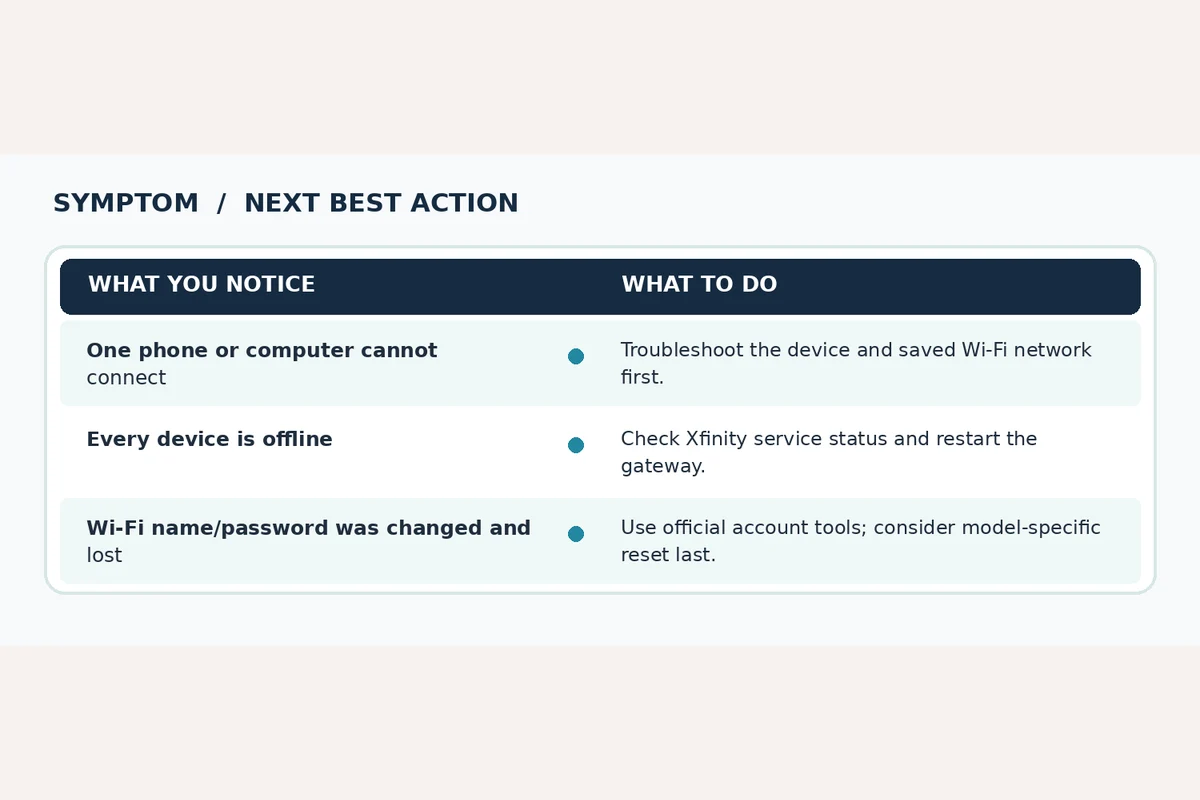
A slow device, a full-home outage and a login problem need different approaches. Use this quick matrix to avoid deleting settings unnecessarily.
Step-by-step solution
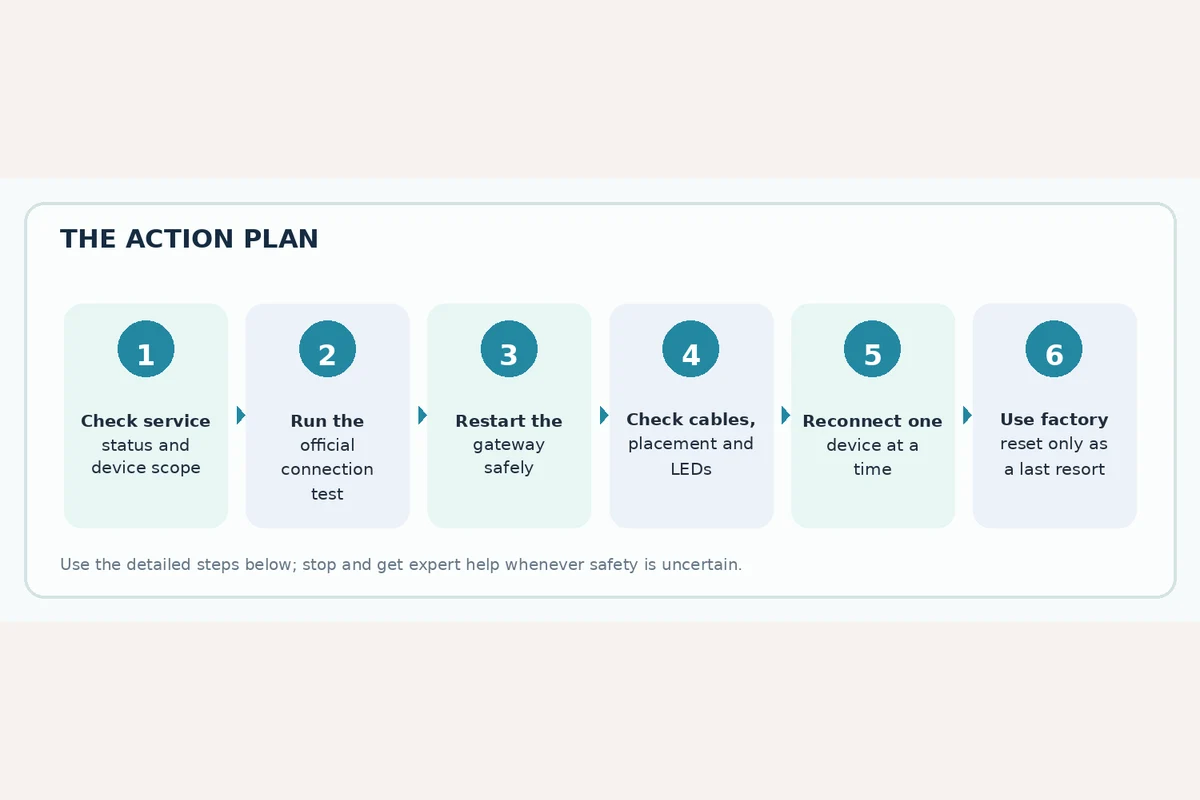
1. Check service status and device scope
Find out whether mobile data works and whether multiple Wi-Fi devices are affected. If only one laptop is offline, forget and rejoin the correct network on that device before changing gateway settings. Check the Xfinity app or account for an outage notification. If the provider reports area maintenance, local resetting probably will not restore service; avoid repeated restarts while the issue is unresolved.
2. Run the official connection test
Open the Xfinity app using mobile data if home internet is unavailable. Find the gateway or troubleshooting area and run the available network test, following the current on-screen labels. Xfinity specifically recommends this diagnostic step before restarting in many cases. Record any reported service error. If the app reports an outage, note the expected restoration notice instead of clearing all personal network settings.
3. Restart the gateway safely
Use the app’s restart option where available, or follow the model-specific procedure in Xfinity’s support article. If manually unplugging, remove power—not coax connections—then reconnect power after the interval Xfinity recommends. Allow the gateway to complete its startup sequence; lights can change several times. Do not repeatedly disconnect power during the process. Internet and Wi-Fi may take several minutes to stabilize.
4. Check cables, placement and LEDs
Make sure the power adapter is connected securely and the coax connection has not been accidentally loosened. Read the status light pattern using Xfinity’s current model-specific guide rather than assuming every color has the same meaning on all gateways. Place the unit in an open, ventilated area away from dense cabinets or large metal surfaces. If wired internet works but distant Wi-Fi devices do not, signal coverage rather than gateway failure may be the issue.
5. Reconnect one device at a time
Confirm the exact Wi-Fi network name and password on the account or gateway configuration. Reconnect a nearby phone or computer, then test a second device. If only one gadget fails, restart that gadget and verify its saved network information; do not reset the entire home network. If you manage a mesh extender or third-party router, review its own troubleshooting documentation as well.
6. Use factory reset only as a last resort
A factory reset restores default configuration and can remove customized Wi-Fi names, passwords and other settings. The steps vary between gateway generations. Before proceeding, document settings you want to recreate and consult Xfinity’s instructions for the exact model. Do not use generic button-hold durations. Afterward, verify that connected devices, household controls and any security settings are re-established.
Common mistakes to avoid
- Confusing a normal restart with a factory reset.
- Resetting the gateway before checking for an area outage.
- Pressing and holding unidentified buttons on a rented gateway.
- Assuming one misbehaving phone means the router is broken.
- Rebooting repeatedly instead of recording the error and contacting support.
When to stop and get professional help
Contact Xfinity when the provider reports no service, the gateway shows an unresolved hardware fault, repeated restarts provide only temporary relief, or account provisioning appears wrong. For an interconnected home network with third-party routers, a local network specialist can help prevent double-router and coverage problems.
Prevention and maintenance checklist
- Save the Wi-Fi name and password in a secure password manager.
- Keep the gateway well-ventilated and away from heat and moisture.
- Review the official provider app for outages and equipment alerts.
- Update your own connected devices and router hardware using approved processes.
- Document any custom network settings before changing hardware.
Frequently asked questions
What is the difference between restart and factory reset?
A restart powers the gateway back up without intentionally wiping custom settings. A factory reset restores defaults and can require network setup again.
How long does a restart take?
Startup time varies with the gateway and network. Allow the unit to complete the process and follow Xfinity’s current instructions.
Why is one device still offline after restarting?
That device may have saved an old password, have weak signal or have its own software issue. Test another device before changing router settings.
Does factory reset fix a neighborhood outage?
No. A service outage must be resolved by the provider. Resetting can make recovery more complicated by removing your settings.
What to do next
If the network is restored, record which step worked. If multiple full-home dropouts occur in a week, collect approximate times, LED states and app test results so Xfinity support can investigate efficiently.
References and further reading
These primary sources support the safety, consumer-protection, or platform guidance in this article. Verify product manuals and local rules before acting.
Editorial note: General U.S. information, not individualized professional advice. Product models and local codes may differ. Images are original explanatory illustrations, not photographs of a specific product or job.