 Calculate

Applying for jobs across several websites makes it easy to miss a deadline, send the wrong version of your resume, or forget a follow-up. A simple spreadsheet can replace scattered emails and browser tabs with one reliable record. This guide shows exactly what to track and how to use the information each week.
The short answer
Create a Google Sheet with one row per application and columns for company, role, job link, location, date applied, status, next action date, contact, resume version and notes. Add a drop-down for status, freeze the header row, and filter overdue follow-ups. Review the sheet twice a week. The tracker is most useful when it tells you the next action, not just how many applications you sent.
Before you begin: Avoid adding Social Security numbers, ID scans, financial account information or passwords. Keep your sheet private unless sharing is intentional. A job application tracker should support your search, not encourage submitting low-quality applications.
First, identify the problem
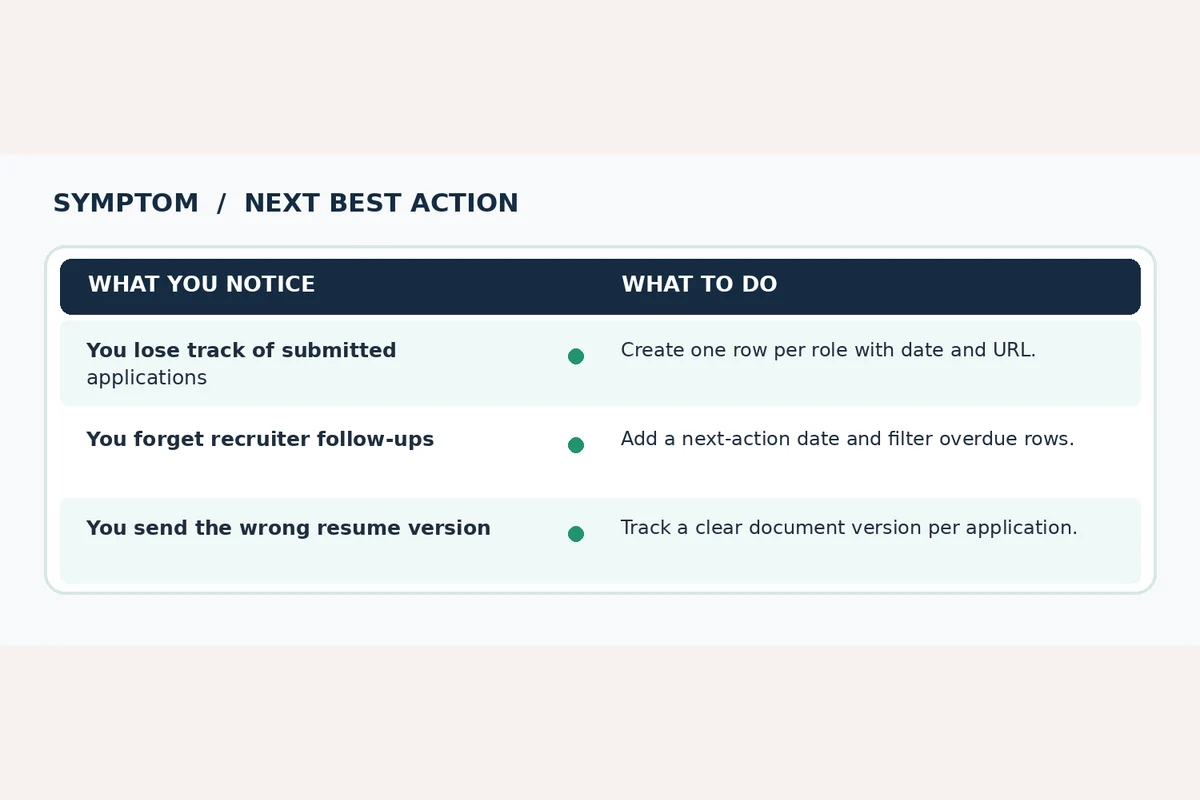
A useful tracker answers three questions at a glance: what happened, what happens next, and what requires attention today.
Step-by-step solution
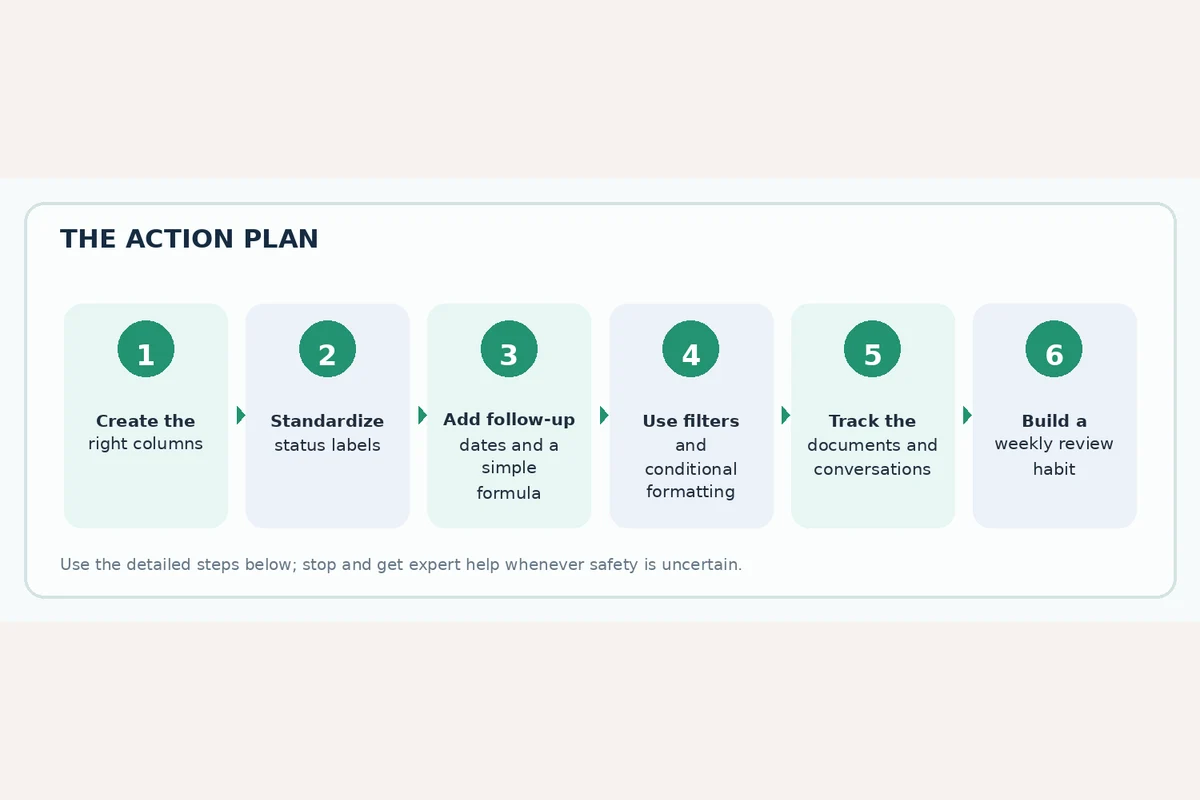
1. Create the right columns
Open a new Google Sheet and label columns: Date Applied, Company, Job Title, Job URL, Location/Remote, Source, Status, Next Action, Next Action Date, Contact, Resume Version, and Notes. Keep the structure small enough that you will actually use it. Every application gets one row, even when two openings are at the same company. A unique row helps you avoid mixing interviews and links.
2. Standardize status labels
Use a dropdown such as Saved, Applied, Recruiter Screen, Interview, Assessment, Offer, Rejected, Withdrawn. Standard labels let you filter without worrying whether you wrote “Interview” or “Interviewed” in different rows. In Google Sheets, select the column, use the Data menu to create a dropdown, and choose colors if helpful. Avoid a dozen overlapping status options that make sorting less useful.
3. Add follow-up dates and a simple formula
Create a Next Action Date column using real date cells. An optional helper column can mark overdue actions with a formula such as =IF(AND(I2<TODAY(),I2<>"",G2<>"Rejected",G2<>"Withdrawn"),"FOLLOW UP",""). Adjust letters to match your actual columns. This formula identifies tasks whose dates have passed, but it does not automatically email recruiters. Review its results regularly and avoid unnecessary repeat messages.
4. Use filters and conditional formatting
Freeze the header and turn on filtering so you can see only interview-stage roles or actions due this week. Create a conditional formatting rule that highlights “FOLLOW UP” in the helper column. Google’s official help explains both sorting/filtering and conditional formatting. Check that the formatting applies to the full expected data range as new rows are added.
5. Track the documents and conversations
Name resume versions consistently—for example, Resume_ProductAnalyst_v3.pdf—then record the exact file used for each submission. Keep interview notes factual: who spoke with you, relevant questions, what you promised, and the next action. Add a link to the job description or save a permitted copy because online listings sometimes disappear. Avoid recording sensitive information the employer did not request.
6. Build a weekly review habit
Twice a week, sort by Next Action Date and update each active role. Send short, appropriate follow-ups only when useful and consistent with the employer’s process. Look for trends: which resume version led to interviews, which sources provided relevant roles, and whether applications match your skills. Archive completed applications rather than deleting the history. A tracker turns activity into informed decisions, not simply a higher application count.
Common mistakes to avoid
- Tracking only the number of applications and omitting a next action.
- Using too many statuses and inconsistent spelling.
- Storing sensitive identity documents or passwords in the sheet.
- Applying to the same role twice because a job board duplicated the posting.
- Sending repeated follow-ups just because a reminder cell is highlighted.
When to stop and get professional help
If you are receiving few interviews despite well-matched applications, seek feedback on your resume, target roles and interviewing approach. Career centers, professional associations and reputable coaches can help. If a recruiter requests money, gift cards or unusual identity documents before verification, stop and investigate the company.
Prevention and maintenance checklist
- Enter new applications immediately after submitting them.
- Review next actions at least twice weekly.
- Use descriptive filenames and a controlled place to store resumes.
- Create a second sheet for interview preparation if activity increases.
- Back up or export the tracker periodically and limit sharing permissions.
Frequently asked questions
Should I track jobs I have not applied to yet?
Yes, mark them Saved and give each a deadline or next action. Keep them separate from Applied so your results remain accurate.
What status labels work best?
Start with a small list: Saved, Applied, Screening, Interview, Offer, Rejected and Withdrawn. Add more only when a real workflow requires it.
Can the sheet send automated reminders?
You can use Google Calendar reminders or a carefully configured automation, but a basic sheet alone does not send emails simply because a date has passed.
What is the most useful metric?
Relevant interviews per well-matched application can tell you more than raw submission volume. Review trends cautiously because small sample sizes can mislead.
What to do next
Use the template structure today with the five most recent roles you applied for. Add every next action and review the list next week; if the columns help you avoid one missed follow-up, the system is already working.
References and further reading
These primary sources support the safety, consumer-protection, or platform guidance in this article. Verify product manuals and local rules before acting.
- Google Sheets: sorting and filtering data
- Google Sheets: conditional formatting rules
- FTC: job scams and warning signs
Editorial note: General U.S. information, not individualized professional advice. Product models and local codes may differ. Images are original explanatory illustrations, not photographs of a specific product or job.