 Calculate
A failed Windows update can interrupt work, create a restart loop, or leave the computer showing an unfamiliar error code. The safest first move is not a risky registry edit. This guide starts with the checks Microsoft recommends and explains how to escalate only when the straightforward options fail.
The short answer
Record the exact error code, back up important files, plug in the laptop, and restart the PC. Confirm the internet connection, date and time, and available disk space. In Windows 11, try Settings > System > Troubleshoot > Other troubleshooters (or the Get Help app, depending on version), then run Windows Update again. Use Microsoft’s current error-specific documentation before attempting component resets or reinstalling Windows.
Before you begin: Back up important files before advanced repair. Do not download unofficial “Windows repair tools,” delete system folders at random, or disable security protections permanently. Managed work computers may require an administrator.
First, identify the problem
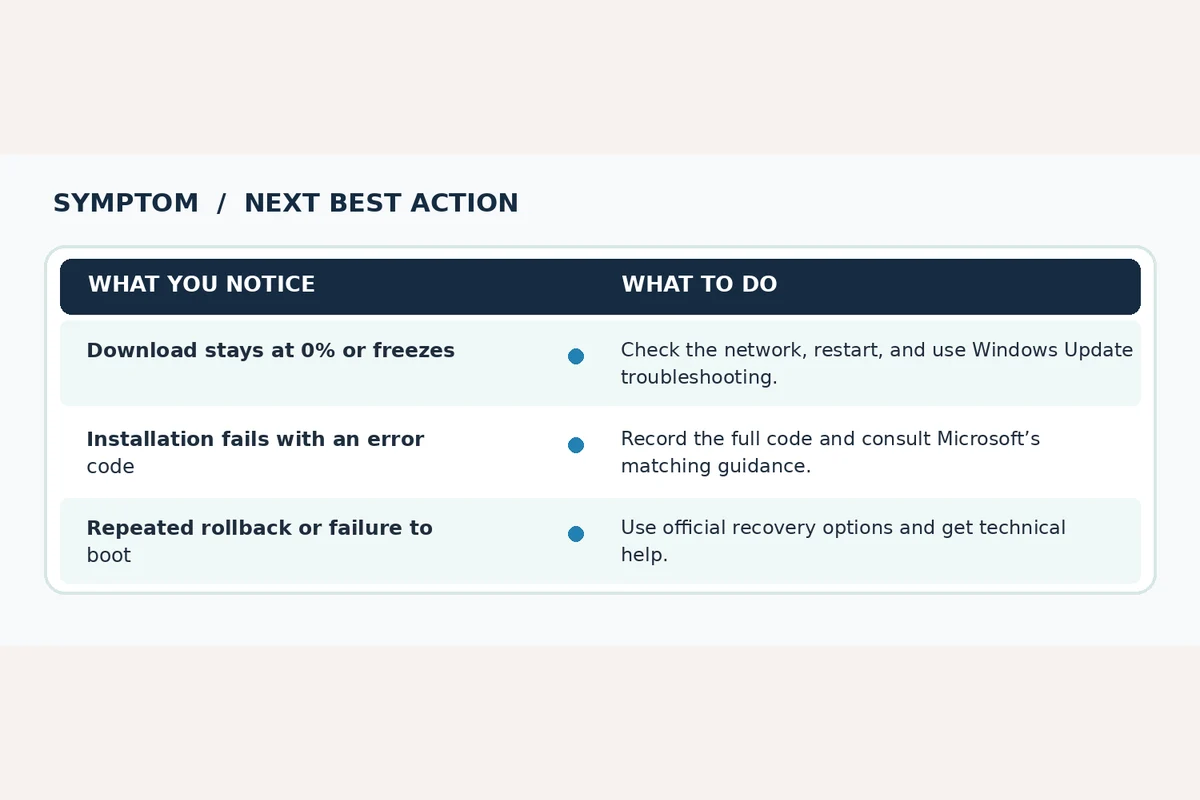
An error number narrows the possible causes. A stalled download, failed installation and repeated rollback are not always the same problem.
Step-by-step solution
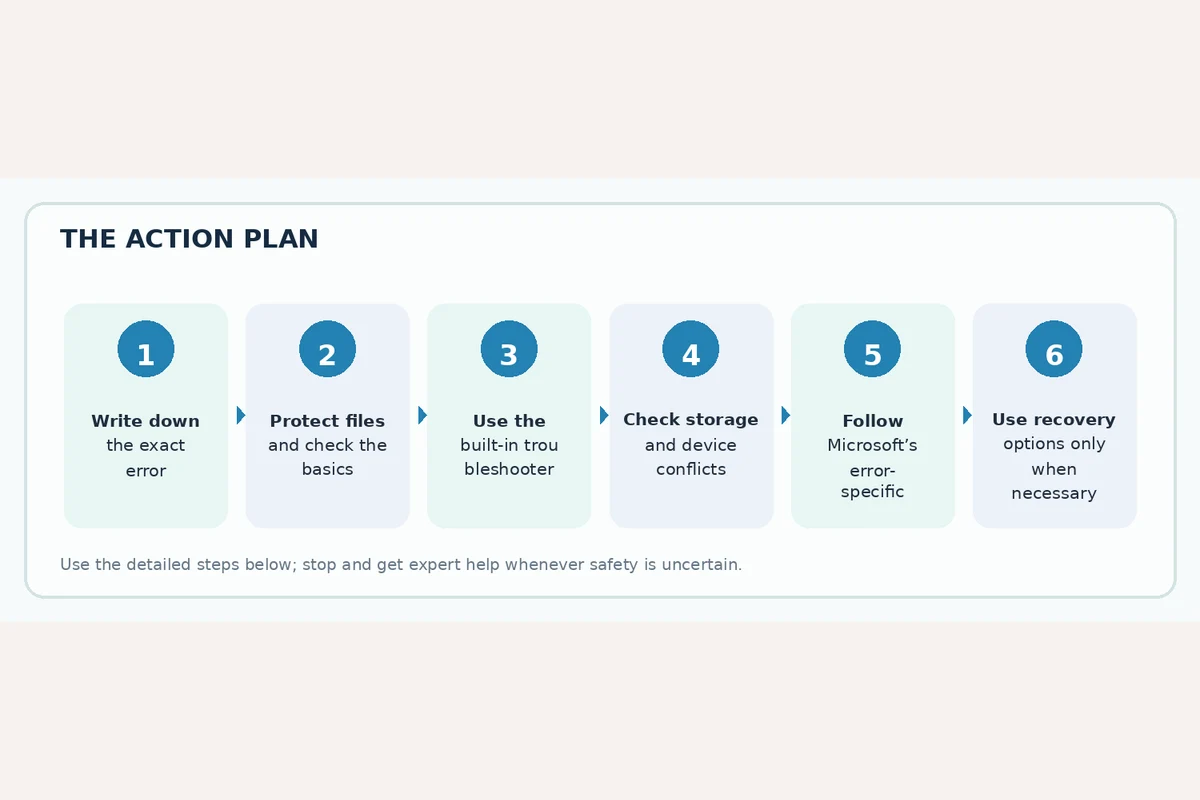
1. Write down the exact error
Open Settings > Windows Update > Update history and identify the failed update, KB number and error code. Note whether it is a security, quality, driver or feature update. Screenshots of the error and the date of failure are useful when seeking support. Avoid acting on a generic search result if it does not match the exact Windows release and code. Microsoft publishes code-specific troubleshooting pages; use those as your primary reference.
2. Protect files and check the basics
Make sure important data is backed up, the computer has a stable power supply and sufficient free storage, and Windows has the correct date and time. Restart fully rather than simply closing the lid. Test the internet connection by opening a trusted site, and pause large downloads or VPN connections if they are causing network issues. For a company-managed device, first check whether your IT department controls update policies.
3. Use the built-in troubleshooter
On a supported Windows 11 version, open Settings, find the troubleshooting options, and run Windows Update troubleshooting or the Get Help workflow presented by Microsoft. Follow the on-screen instructions and note any change it makes. Restart if prompted. Interface labels can vary by release, so search Settings for “troubleshoot” rather than relying on an outdated screenshot. Try checking for updates again once the troubleshooter has finished.
4. Check storage and device conflicts
Large updates need room to unpack and install. Use Settings > System > Storage to identify unneeded temporary files; review items before removing anything. Disconnect nonessential external devices if the Microsoft guidance for your error recommends doing so. If driver installation is involved, use Windows Update, the device manufacturer, or your IT support for approved drivers. Avoid third-party driver bundles that promise one-click solutions.
5. Follow Microsoft’s error-specific steps
If the update fails again, compare your precise error with Microsoft’s official troubleshooting table. Some errors relate to damaged update files, network interruptions, services or insufficient space. Advanced instructions may involve system repair tools or resetting update components; perform these only when the Microsoft page for your error tells you how and you are comfortable using administrative tools. Never copy unverified command lists from forums.
6. Use recovery options only when necessary
If Windows cannot start normally, follow Microsoft’s official recovery guidance. Options can include Startup Repair, uninstalling a recent update or restoring from a suitable recovery point. Understand the effect on apps and files before resetting or reinstalling the operating system. If the device stores critical work, is encrypted or is employer-managed, consult IT support before changing recovery settings or partitions.
Common mistakes to avoid
- Searching only for “update error” instead of the exact code and Windows version.
- Deleting the Windows folder or running unfamiliar administrative scripts copied from videos.
- Installing a third-party driver updater or “registry cleaner” as a first fix.
- Continuing without a recent backup before a major upgrade or recovery action.
- Ignoring an organizational update policy on a work or school computer.
When to stop and get professional help
Ask IT support for help when the device belongs to an employer, uses BitLocker and recovery credentials are unclear, repeatedly crashes during updates, or cannot boot. Persistent disk errors or a failing drive can look like software-update issues and deserve hardware diagnosis.
Prevention and maintenance checklist
- Keep adequate free space on the system drive.
- Install updates during a time when the computer can remain powered on.
- Use trusted drivers and avoid unnecessary system “optimization” tools.
- Maintain routine file backups, especially before feature updates.
- Record any recurring error code so it can be compared with Microsoft’s guidance.
Frequently asked questions
Why does an update remain stuck at 0%?
Network, service or cached download issues can contribute. Start with a restart, stable internet and Microsoft’s built-in troubleshooter before attempting advanced repairs.
Will resetting Windows Update delete my files?
Some advanced procedures affect update components but are not intended to erase personal files. However, all system repairs carry risk; back up before attempting them and follow official instructions.
Should I turn off antivirus software?
Do not disable protection by default. If Microsoft’s error-specific article identifies a conflict, follow its limited diagnostic guidance and re-enable protection immediately afterward.
Is Windows 10 still supported?
Microsoft ended standard free security updates for Windows 10 on October 14, 2025, with some extended options depending on eligibility. Check Microsoft’s current support policy for your device.
What to do next
If the update succeeds, restart once more and confirm that Update history shows the new installation. If it fails, send the exact code, update number, Windows release and your safe troubleshooting steps to Microsoft Support or your IT professional.
References and further reading
These primary sources support the safety, consumer-protection, or platform guidance in this article. Verify product manuals and local rules before acting.
- Microsoft: troubleshoot problems updating Windows
- Microsoft: Windows Update troubleshooter
- Microsoft: recovery options in Windows
Editorial note: General U.S. information, not individualized professional advice. Product models and local codes may differ. Images are original explanatory illustrations, not photographs of a specific product or job.